
SalesforceHound (SFHound) - Mapping Salesforce Attack Paths with BloodHound
Intro
Salesforce’s permission model is one of the most layered and convoluted IAM systems I’ve had to reason about. Profiles, Permission Sets, Permission Set Groups, Role Hierarchies, Sharing Rules, Public Groups, Queues, Connected Apps. Each one a legitimate access vector, each one capable of granting far more than whoever configured it intended. Auditing this manually is genuinely painful. You end up writing SOQL queries that return flat lists, pivot them against each other in a spreadsheet, and still have no reliable picture of the actual blast radius of a compromised account.
The observation that drove this project was a simple one: BloodHound already solved this problem for Active Directory. The entire point of the graph model is that it answers questions about transitive access that would otherwise require you to enumerate every possible path yourself. Salesforce has the same structural problem, deeply nested permission inheritance, group membership, and role hierarchy. Because of this, it deserves the same treatment.
So I built SFHound. It’s an open-source data collector that queries the Salesforce REST, Tooling, and Metadata APIs via a JWT-authenticated Connected App, then emits a BloodHound OpenGraph-compatible JSON file. Load it into BloodHound CE and you’ve got the full org modelled as a traversable property graph.
The full documentation is at sfhound.kaibersec.com and the code is at github.com/Khadinxc/sfhound.
The Problem with Salesforce IAM
The core issue is that Salesforce doesn’t expose a single “effective permissions” surface. A user’s actual access is the union of their Profile, all directly assigned Permission Sets, all Permission Sets bundled inside any Permission Set Groups they’ve been assigned, and any sharing rules or role hierarchy inheritance that applies on top of that. On a production org with thousands of users and hundreds of permission configurations, there’s no query you can run in setup that gives you a clear answer to “who can read every record in this org regardless of sharing rules?”
That kind of question is what BloodHound’s shortest-path engine was built for. Instead of trying to flatten that complexity yourself, you model it as a graph and let the engine do the work.
SFHound resolves that model from the Salesforce APIs and produces the following:
| Category | What’s collected |
|---|---|
| Users | All active and inactive User records with key profile attributes |
| Profiles | Every Profile with its backing PermissionSet and system permission flags |
| Permission Sets | Standalone Permission Sets, including aggregate sets owned by groups |
| Permission Set Groups | Groups of Permission Sets with constituent membership |
| Role Hierarchy | Every Role and its parent/child relationships |
| Public Groups & Queues | Group membership (direct and nested), Queue SObject ownership |
| Object Permissions | CRUD and ViewAll/ModifyAll flags per object per Profile/PermissionSet |
| Field Permissions | IsVisible and ReadOnly FLS edges per field per Profile/PermissionSet |
| Connected Apps | OAuth apps with admin-approval settings and creator provenance |
| OWD Settings | InternalSharingModel and ExternalSharingModel on every SObject |
Design Decisions Worth Calling Out
One design choice that matters for how the graph queries work: system permissions are modelled as edges, not node properties.
Rather than storing PermissionsModifyAllData = true as a property on a Profile node, SFHound emits a ModifyAllData edge from the granting Profile or PermissionSet to a central SFOrganization node. That means finding every user with a path to ModifyAllData is just:
MATCH path = (u:SFUser)-[:AssignedProfile|AssignedPermissionSet]->(ps)-[:ModifyAllData]->(org:SFOrganization)
WHERE ps:SFProfile OR ps:SFPermissionSet
RETURN path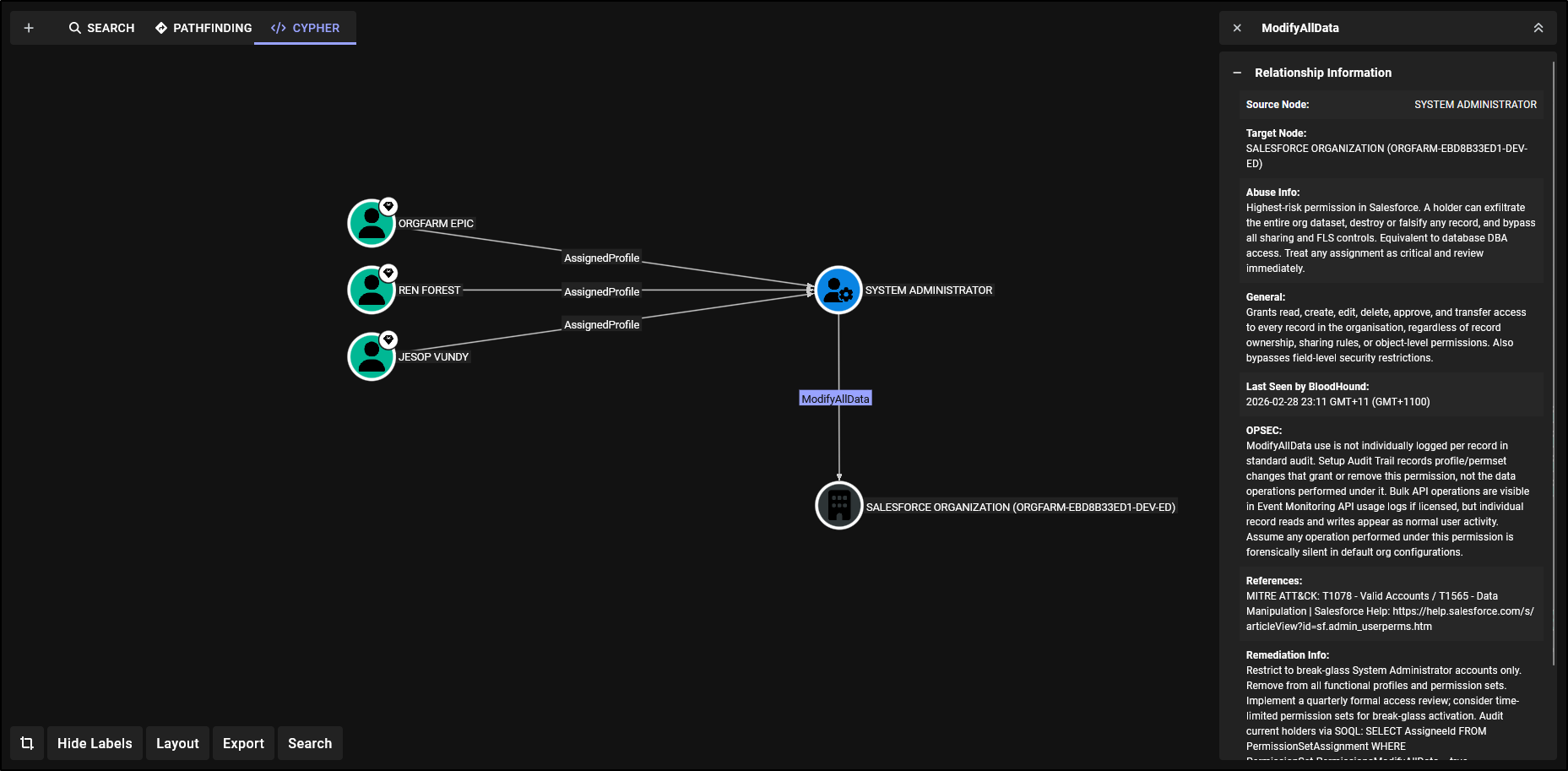
No property filtering, no post-processing, it’s a standard path traversal. This is the same pattern BloodHound uses for AD, and it’s the reason the graph is actually useful rather than just a visualisation.
The other thing worth noting: Salesforce internally generates aggregate PermissionSet nodes for every PermissionSetGroup (the 0PSG… IDs). SFHound materialises these as placeholders so every CRUD and FLS edge has a fully anchored source. Without this you’d end up with dangling edges and broken traversals.
Getting Started
The quickstart covers the full setup, but the even shorter version is:
1. Clone and install
git clone https://github.com/Khadinxc/sfhound.git
cd sfhound/sf-opengraph
pip install -r requirements.txt
2. Create a Salesforce Connected App
SFHound authenticates via the JWT Bearer OAuth flow. You’ll need to generate a certificate and create a Connected App with it uploaded.
openssl genrsa -out salesforce_jwt.key 2048
openssl req -new -x509 -key salesforce_jwt.key -out salesforce_jwt.crt -days 365
In Salesforce: Setup → App Manager → New Connected App. Enable OAuth Settings, set the callback URL to https://login.salesforce.com/services/oauth2/callback, enable “Use digital signatures”, upload salesforce_jwt.crt, and add the api and refresh_token, offline_access scopes.
Pre-authorise your integration user via Setup → Connected Apps → Manage Connected Apps → sfhound → Edit Policies. Set Permitted Users to Admin approved users are pre-authorized and add the user’s Profile or Permission Set.
3. Assign minimum permissions
For a complete graph the integration user needs:
| Permission | Purpose |
|---|---|
| API Enabled | Required for REST/Tooling API access |
| View Setup and Configuration | Query Profiles, PermissionSets, Roles, ConnectedApps |
| View All Data | Query Users, Groups, all record data |
System Administrator works. A cloned Standard User profile with those three permissions also works.
4. Configure config.yaml
cp config.yaml.example config.yamlNote: It’s generally not recommended to use the config.yaml in regular usage. This exists purely for development work so you can easily run commands without needing to include large amounts of flags. Proper operationalisation in a pipeline that continuously updates your Bloodhound instance should secure variables passed into the collector.
salesforce:
  client_id: "YOUR_CONNECTED_APP_CONSUMER_KEY"
  username: "your.integration.user@example.com"
  private_key_path: "./salesforce_jwt.key"
  login_url: "https://login.salesforce.com"  # https://test.salesforce.com for sandboxes
  api_version: "v56.0"

bloodhound:
  url: "http://127.0.0.1:8080"
  username: "admin"
  password: "YOUR_BLOODHOUND_PASSWORD"
  auto-ingest: false

env:
  output_path: "./opengraph_output"
client_idis the Consumer Key from your Connected App’s “Manage Consumer Details” page, not the app name.
5. Run the collector
python sfhound.py --auto-ingestWith --auto-ingest, SFHound validates the output JSON against the OpenGraph schema, checks BloodHound for stuck jobs, creates a file-upload job, uploads the graph, and polls until ingestion completes. You can also skip the flag and drag-and-drop the output file from ./opengraph_output/ into BloodHound manually.
6. Register custom icons (optional but absolutely worth it for the aesthetics)
SFHound ships custom BloodHound node icons for all Salesforce node types. Register them once:
python examples/post_custom_icons.pyWhat the Graph Gives You
With the data loaded you can start answering questions that would have taken hours to answer manually.
Who can modify every record in the org?
MATCH path = (u:SFUser)-[:AssignedProfile|AssignedPermissionSet]->(ps)-[:ModifyAllData]->(org:SFOrganization)
WHERE ps:SFProfile OR ps:SFPermissionSet
RETURN path
All users with a direct permission assignment:
MATCH path = (u:SFUser)-[r:AssignedProfile|AssignedPermissionSet]->(ps)
WHERE ps:SFProfile OR ps:SFPermissionSet
RETURN path
LIMIT 100
Who can deploy Apex code or restructure the role hierarchy?
MATCH path = (u:SFUser)-[:AssignedProfile|AssignedPermissionSet]->(ps)-[:AuthorApex|ManageUsers|ManageSharing]->(org:SFOrganization)
WHERE ps:SFProfile OR ps:SFPermissionSet
RETURN path
The graph has 11 node types and 40+ edge types covering assignment, system permissions, CRUD, FLS, group membership, role inheritance, and OAuth authorisation. A full query library is in the Cypher Queries reference. There is much more that can be modelled in Salesforce and I’m excited to here peoples suggestions and continue working on this. I set a milestone I wanted to meet and do an initial release because though this scratches the surface, the current state of the collector, I think will be already invaluable to a security engineer operating in a Salesforce environment.
Case Study One: Modelling Effective Access and Blast Radius
One of the most immediately useful things you can do with the graph is centre it on a single user and ask, if this account is compromised, what can an attacker reach? This is effectively the blast radius question, and it’s one that’s genuinely difficult to answer in Salesforce without a graph model because the answer is spread across a Profile, potentially multiple Permission Sets, Permission Set Groups, and whatever the role hierarchy implicitly extends.
The graph below is focused on Peter Wiener. Looking at it from a defensive standpoint this is what a reviewer or detection engineer wants to see when assessing the impact of a credential compromise. From an offensive standpoint, after gaining access as Peter, this is the map of what you can interact with and what you need to target next.
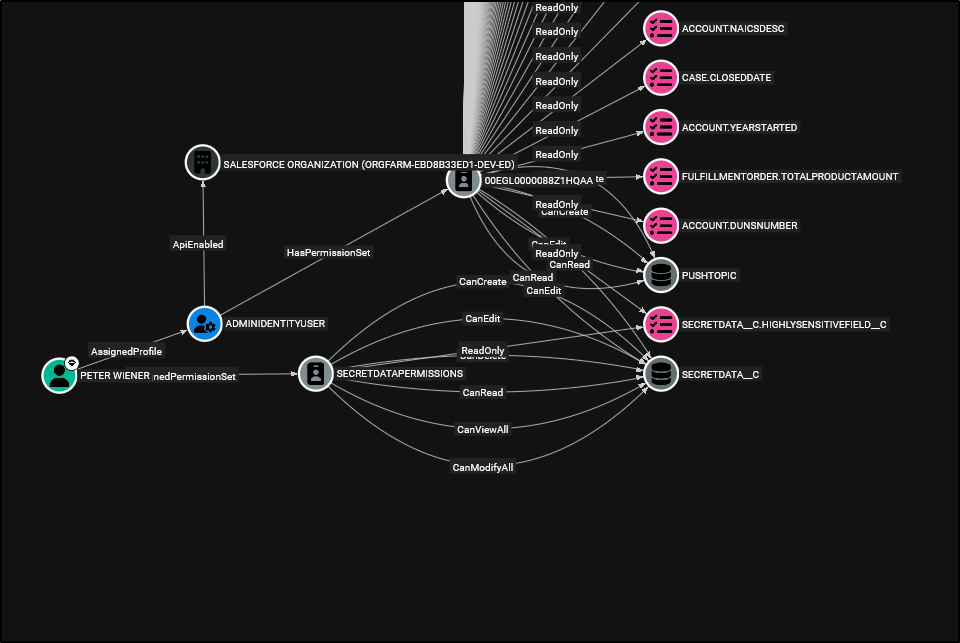
Breaking down what the graph surfaces:
- Peter has
AssignedProfilepointing toADMINIDENTITYUSER, which carries anApiEnablededge to theSFOrganizationnode and aHasPermissionSetedge to the profile’s backing PermissionSet. This immediately tells you the account has API access, relevant for both automated exploitation and for understanding what data export paths are available. - Peter also has an
AssignedPermissionSetedge toSECRETDATAPERMISSIONS, which fans out toSECRETDATA__Cwith the full set of CRUD edges plusCanViewAllandCanModifyAll. That’s unrestricted access to every record on that object, bypassing sharing rules entirely. - From
SECRETDATAPERMISSIONSyou can also seeCanEditandReadOnlyFLS edges reachingSECRETDATA__C.HIGHLYSENSITIVEFIELD__C, so not only can Peter read every record on the object, they have field-level visibility into the most sensitive field on it. - Beyond the sensitive custom object, the permission set also grants
CanCreate,CanRead, andCanEditonPushTopic, which is relevant for streaming API abuse. - The Profile’s backing PermissionSet contributes additional
ReadOnlyFLS edges to standard object fields:ACCOUNT.NAICSDESC,CASE.CLOSEDDATE,ACCOUNT.YEARSTARTED,FULFILLMENTORDER.TOTALPRODUCTAMOUNT,ACCOUNT.DUNSNUMBER.
The Cypher to generate this centred view for any user is straightforward:
MATCH path = (u:SFUser)-[:AssignedProfile|AssignedPermissionSet|AssignedPermissionSetGroup|HasPermissionSet|IncludesPermissionSet*1..4]->(ps)-[access:CanCreate|CanRead|CanEdit|CanDelete|CanViewAll|CanModifyAll|IsVisible|ReadOnly|ModifyAllData|ViewAllData|ViewSetup|ManageUsers|ManageRoles|ManageSharing|ManageProfilesPermissionsets|AuthorApex|CustomizeApplication|ApiEnabled|EditTask|EditEvent|ManageTranslation|CanAuthorize]->(target)
WHERE u.name = "PETER WIENER"
  AND (ps:SFProfile OR ps:SFPermissionSet OR ps:SFPermissionSetGroup)
RETURN path
LIMIT 500
From a defensive perspective this query gives you the complete effective access picture for a user in one traversal, something that would require correlating multiple permission queries manually in Salesforce Setup. From an offensive perspective, running this after initial access immediately scopes what data is reachable and whether there are any high-value targets worth pursuing before escalating further.
This is also a useful pattern for access reviews before significant changes like role reassignments or permission set grants, run the query before and after, diff the results, and you have a precise before/after picture of what changed.
Case Study Two: Who Has Access to Your Crown Jewels?
The Salesforce GUI requires a significant amount of clicking and manual cross-referencing to answer what should be a simple question: who can access a specific object? You need to look at each Profile’s object permissions, each Permission Set’s object permissions, trace which users are assigned to each of those, and account for Permission Set Groups that bundle multiple Permission Sets together. On any non-trivial org this is a multi-hour exercise with plenty of surface area to miss something.
In the graph, it’s a single query.
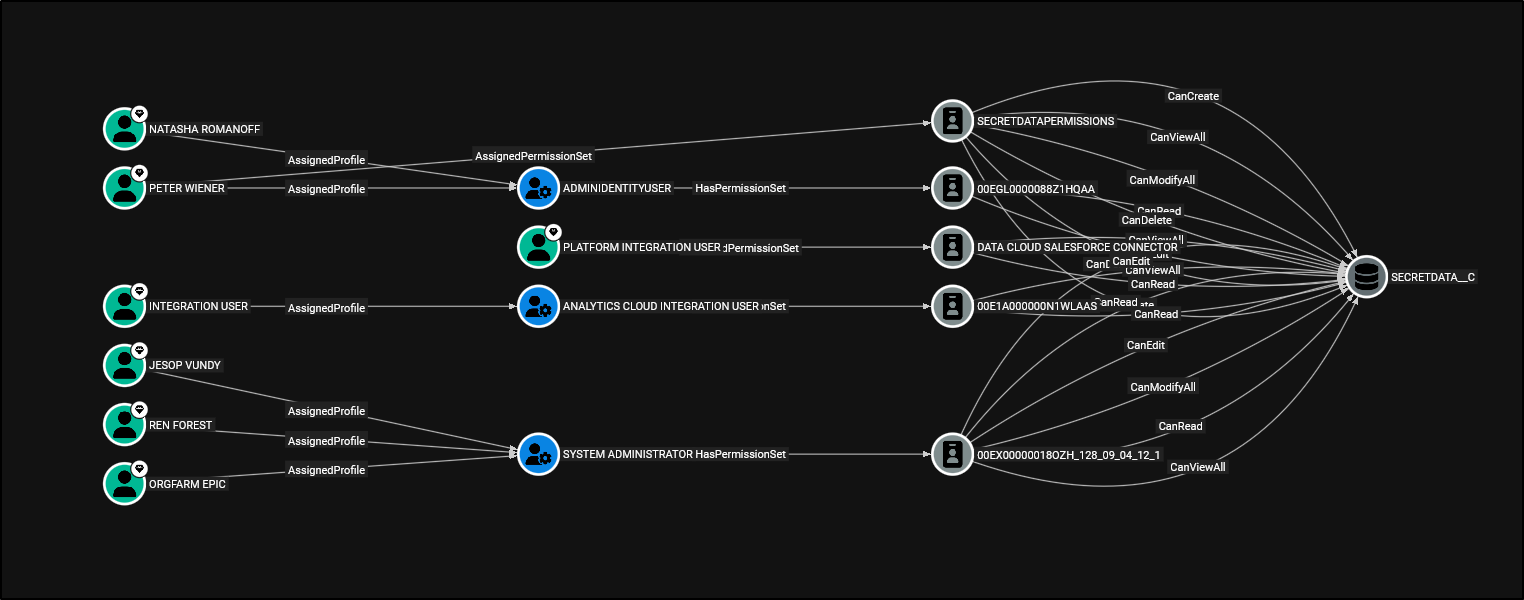
The graph here resolves every path from a user to SECRETDATA__C regardless of how that access was granted. Breaking down what’s visible:
- Natasha Romanoff and Peter Wiener both share the
ADMINIDENTITYUSERprofile viaAssignedProfile. That profile has aHasPermissionSetedge to its backing PermissionSet (00EGL0000088Z1HQAA), which in turn carriesCanRead,CanDelete,CanViewAllonSECRETDATA__C.- Though Peter Wiener has access via
ADMINIDENTITYUSER, even after removing it, he is also directly assigned the Permission SetSECRETDATAPERMISSIONS. Allowing him full CRUD access toSECRETDATA__C.
- Though Peter Wiener has access via
- Platform Integration User is assigned a Permission Set with a
HasPermissionSetedge toDATA CLOUD SALESFORCE CONNECTOR, which contributesCanEdit,CanViewAll,CanReadon the object. - Integration User hits
SECRETDATA__Cthrough theANALYTICS CLOUD INTEGRATION USERprofile’s backing PermissionSet (00E1A000000N1WLAAS) withCanRead. - Jesop Vundy, Ren Forest and Orgfarm Epic all hold the
SYSTEM ADMINISTRATORprofile, which via its backing PermissionSet (00EX000001 8OZH_128_09_04_12_1) grants full CRUD on the object.
What this illustrates is that the same object is reachable through completely different permission paths, some explicit via named Permission Sets, some implicit via the profile’s internal backing PermissionSet that most administrators don’t think of as a separate object at all. The 0PS/00E internal IDs are exactly the aggregated nodes SFHound materialises as placeholders to ensure these paths don’t disappear into dangling edges.
The Cypher query to produce this view for any object is:
MATCH path = (u:SFUser)-[:AssignedProfile|AssignedPermissionSet|AssignedPermissionSetGroup|HasPermissionSet|IncludesPermissionSet*1..5]->(ps)-[r:CanCreate|CanRead|CanEdit|CanDelete|CanViewAll|CanModifyAll]->(obj:SFSObject)
WHERE obj.name = "SECRETDATA__C"
AND (ps:SFPermissionSet OR ps:SFProfile)
RETURN path
This same query is also the foundation of the Tier Zero cypher rules covered later. Rather than manually classifying which users have access to your most sensitive objects, you can feed this directly into BloodHound’s Tier Zero configuration and have it tag those principals automatically on every ingest.
Case Study Three: Indirect Record Access via Role Hierarchy
This is one of the more insidious access paths in Salesforce because it isn’t a misconfiguration, it’s the platform working exactly as designed. Role hierarchy in Salesforce grants users higher up in the hierarchy visibility over records owned by users below them. That’s the intended behaviour for things like managers reviewing their team’s pipeline. The problem is that this visibility mechanism operates separately from permission assignments such as profiles and permission sets, which is where most access reviews focus their attention.
The graph below illustrates this at a high level (since record level access isn’t modelled yet..).
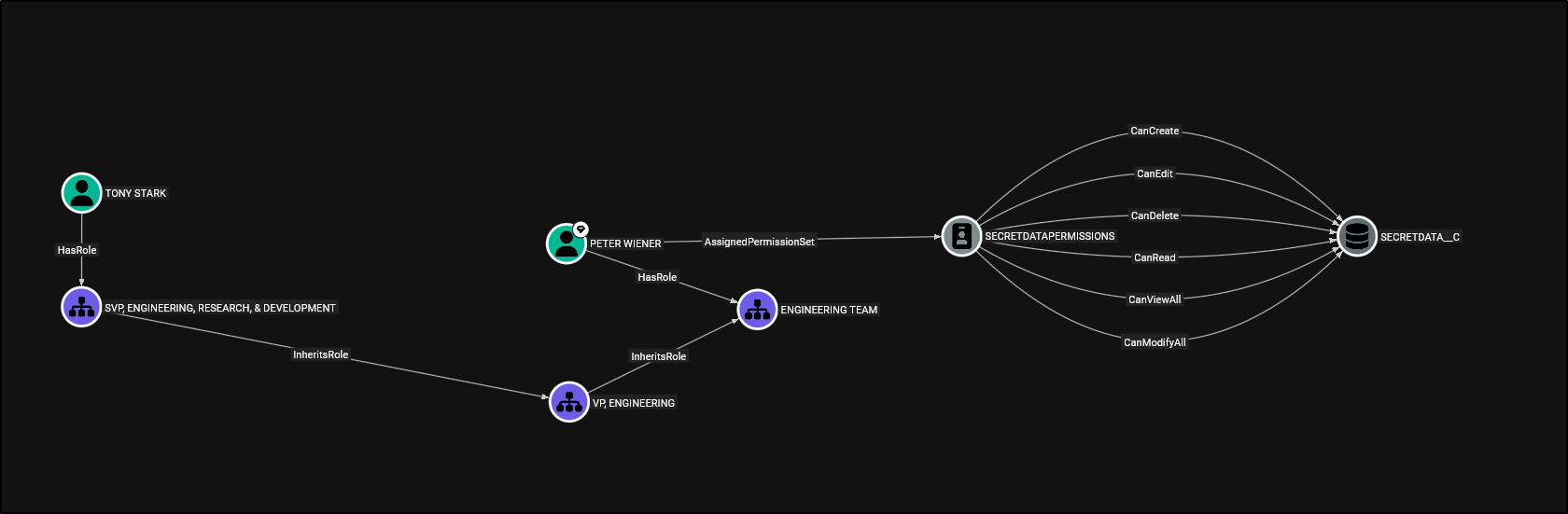
Breaking down what’s happening here:
- Peter Wiener has been directly assigned the
SECRETDATAPERMISSIONSpermission set, which carries full CRUD plusCanViewAllandCanModifyAllonSECRETDATA__C. This is the explicit access path and the one an access reviewer would find if they queried permission set assignments for that object. - Peter also holds the
ENGINEERING TEAMrole, which sits belowVP, ENGINEERINGin the role hierarchy via anInheritsRoleedge. - Tony Stark holds the
SVP, ENGINEERING, RESEARCH, & DEVELOPMENTrole, which also inherits fromVP, ENGINEERING. Tony’s role sits above Peter’s in that branch of the hierarchy.
Because Tony is higher in the hierarchy than Peter, Salesforce’s role hierarchy grants Tony visibility over any SECRETDATA__C records owned by Peter, or anyone else below Tony in that branch of the hierarchy. Tony does not have any explicit permission set assignments granting access to SECRETDATA__C. An access review scoped only to permission set assignments would therefore find nothing. His ability to view these records arises from the combination of record ownership and hierarchy position, provided his profile already grants baseline read access to the object.
This is the gap. The access isn’t granted through permissions, it’s granted through record ownership combined with hierarchy position. It’s entirely invisible unless you’re looking at the role hierarchy and the permission assignments in the same model simultaneously, which is exactly what the graph provides.
The Cypher to surface users in higher positions that may be inheriting access:
MATCH path = (senior:SFUser)-[:HasRole]->(seniorRole:SFRole)-[:InheritsRole*1..5]->(juniorRole:SFRole)<-[:HasRole]-(junior:SFUser)-[:AssignedProfile|AssignedPermissionSet]->(ps)-[:CanRead|CanCreate|CanEdit|CanDelete|CanViewAll|CanModifyAll]->(obj:SFSObject)
WHERE senior.name = "TONY STARK"
  AND (ps:SFProfile OR ps:SFPermissionSet)
RETURN path
LIMIT 200
From the image above you can see there is a middle role between Tony Stark and Peter Wiener, you might wonder, well who is the middle manager? After finding direct assignments for all roles with the following query:
MATCH (u:SFUser)-[h:HasRole]->(r:SFRole)
RETURN u, h, r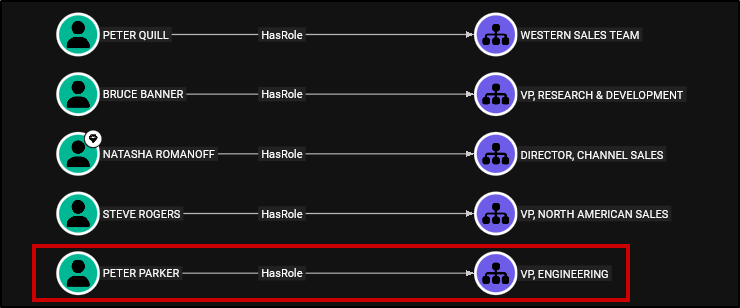
We find out it’s Peter Parker. With this information we can apply the same query that mapped the access path for the object to Tony Stark to Peter Parker also:
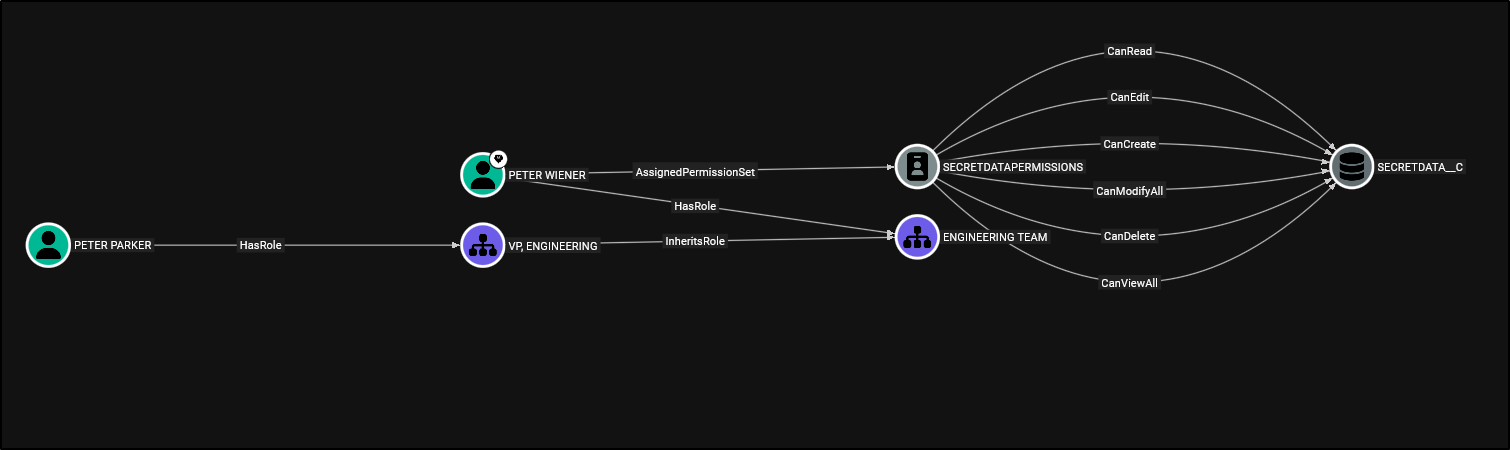
The broader pattern this represents is worth keeping in mind when reviewing any org: permission set audits only tell you part of the story. The role hierarchy extends record visibility upward. Users higher in the hierarchy gain access to records owned by subordinate users, provided they already possess object-level access to the object. This can expose sensitive records even when no explicit permission assignments exist for the higher-level user. Anyone above a privileged user in the hierarchy inherits effective read access to that user’s owned records, regardless of their own direct permissions.
Setting Up Tier Zero Privilege Zones
One of the most useful things you can do after loading the graph is define Tier Zero zones in BloodHound CE. Navigate to Settings → Tier Zero and add these as Cypher rule types.
Users with system-level permissions capable of compromising the org:
MATCH (u:SFUser)-[:AssignedProfile|AssignedPermissionSet]->(ps)-[:ModifyAllData|ManageUsers|ManageProfilesPermissionsets|AuthorApex|CustomizeApplication|ManageSharing]->(:SFOrganization)
WHERE ps:SFProfile OR ps:SFPermissionSet
RETURN DISTINCT u;
Users with access to your highest-value objects, extend the obj.name IN [...] list with your own object API names:
MATCH (u:SFUser)-[:AssignedProfile|AssignedPermissionSet|AssignedPermissionSetGroup|HasPermissionSet|IncludesPermissionSet*1..5]->(ps)-[:CanCreate|CanRead|CanEdit|CanDelete|CanViewAll|CanModifyAll]->(obj:SFSObject)
WHERE obj.name IN ["SECRETDATA__C", "SENSITIVEDATA__C"]
  AND (ps:SFPermissionSet OR ps:SFProfile)
RETURN DISTINCT u;
Users with visibility into specific sensitive fields:
MATCH (u:SFUser)-[:AssignedProfile|AssignedPermissionSet|AssignedPermissionSetGroup|HasPermissionSet|IncludesPermissionSet|CanCreate|CanRead|CanEdit|CanDelete|CanViewAll|CanModifyAll|IsVisible|ReadOnly|Contains*1..10]->(f:SFField)
WHERE f.name IN ["SECRETDATA__C.HIGHLYSENSITIVEFIELD__C","SECRETDATA__C.OTHERSENSITIVEFIELD__C","SENSITIVEDATA__C.HIGHLYSENSITIVEFIELD__C"]
RETURN DISTINCT u
LIMIT 1000;
Limitations
This was built and tested against Developer Edition and sandbox orgs. A few things to be aware of going into it:
- Individual
SharingRulemetadata requires the Salesforce Metadata API and isn’t currently extracted. OWD settings are captured per object. - Queue and group membership extraction in very large orgs (100,000+
GroupMemberrecords) may be slow. - Field permission extraction can produce a large number of edges. For a first pass, consider scoping to custom fields only.
--auto-ingestdoes not clear the BloodHound database before loading. If you need a clean slate, clear it manually in the BloodHound UI first.
Closing
I’d appreciate any feedback on performance or visibility gaps you hit in real environments, particularly in larger production orgs where I haven’t been able to test. Issues and pull requests are welcome on GitHub.
Full documentation, the data model reference, high-risk permission classifications, and lateral movement path examples are at sfhound.kaibersec.com.